How to Export WhatsApp Contacts to Excel
A useful contact spreadsheet starts with the right source and a clear selection. NX turns contacts available in your connected WhatsApp Web session into an Excel file you can review, sort and work with.
Before you start
Use desktop Chrome 142 or newer and connect your own WhatsApp Web account. Install the current NX release using the instructions on our download page. The Chrome Web Store release is awaiting Google review; a preview ZIP is available in the meantime.
NX reads information available in the connected browser session. It cannot recover hidden numbers or fill in details WhatsApp has not made available. Start with a small export so you can check the columns and confirm that the results suit your workflow.
Export an Excel file in five steps
- Open NX and connect WhatsApp. Click the extension icon. If WhatsApp Web asks you to link your account, complete that step and wait for the session to load. NX starts scanning when the session is ready.
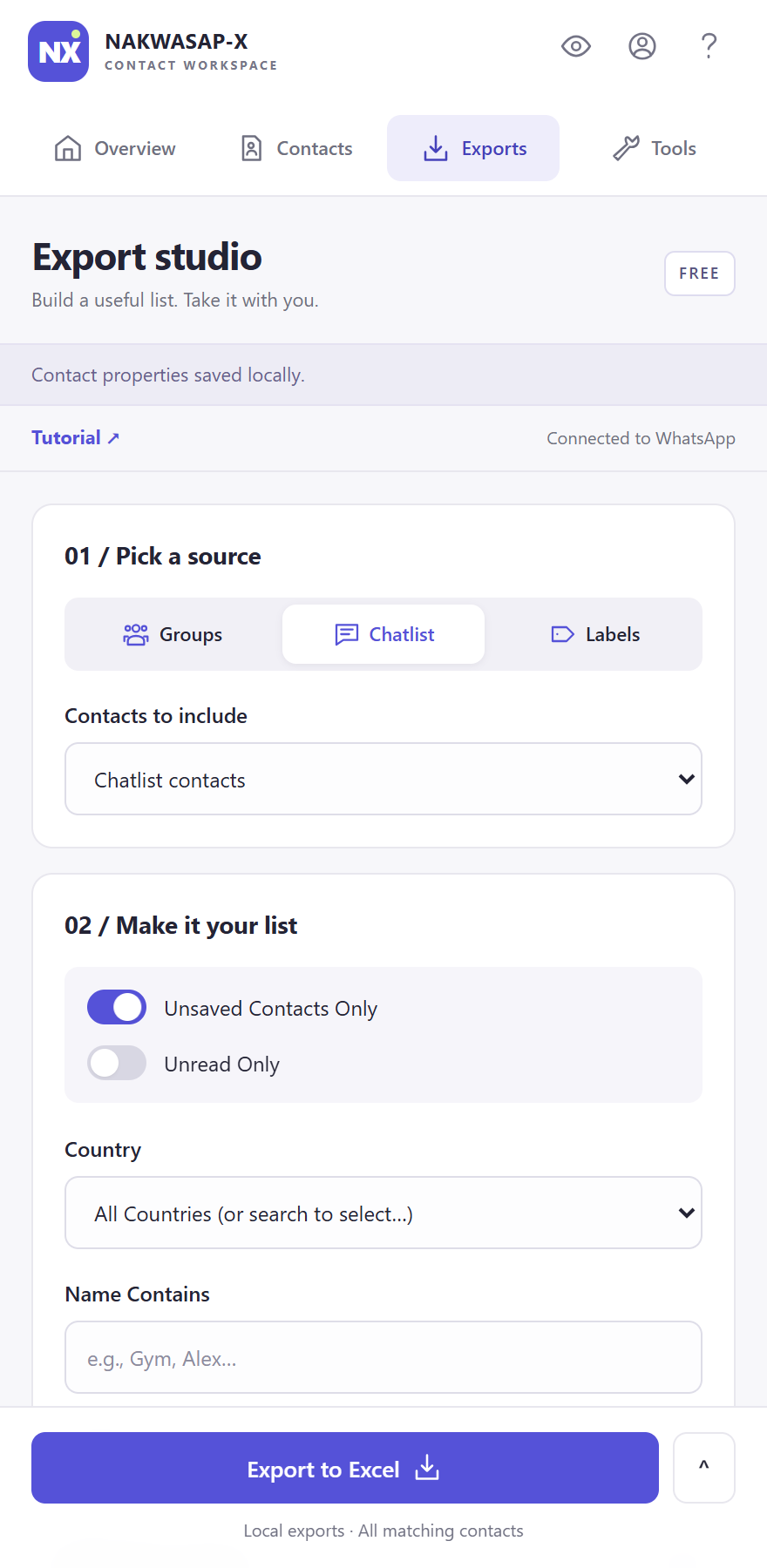
- Open Exports. Choose Chatlist for your conversations, Groups for selected group rosters, or Labels for available WhatsApp Business labels. Under Chatlist, you can switch between Chatlist contacts and All available contacts.
- Refine your list. Filter by unsaved status, unread status, country calling code or a name fragment. Keep Phone Numbers Only enabled if every exported row needs a resolved phone number.
- Check Preview contacts. Review the available rows. Selecting individual contacts narrows the export; with no individual selection, NX exports all matching contacts, subject to your plan. Group members load when you start a group export, so its initial preview can be empty.
- Choose Excel and export. Excel is the default format. If you previously selected another format, open the format selector beside the export button and choose Excel (.xlsx). Save the file and check it in your spreadsheet app.
What to check in the spreadsheet
Look at the contact names, phone numbers and source information before importing the file elsewhere. Notes, tags, email and custom properties are included when you have added them in NX; an empty field does not mean the export failed.
For example, a small sales team could export a relevant chatlist segment, add follow-up notes in a working copy and keep the original export as a dated snapshot. Do not assume that a phone number alone establishes permission to send marketing messages.
If you need a text file for another tool, compare Excel, CSV, vCard, JSON and HTML before choosing your format. A spreadsheet is useful for review; a vCard is intended for contact imports.
Why the exported count may be smaller
Your filters, selected rows and plan can all reduce the result. The Free plan includes up to 15 contacts per export or selected group. NX shows a notice when a Free limit is applied. Pro removes NX export item caps, while availability in WhatsApp and platform restrictions still apply.
Phone Numbers Only excludes contacts without a resolved number. Unsaved Contacts Only also excludes contacts whose saved status is unknown. For group rosters, follow the group export guide because member loading happens separately from the initial scan.
Keep the next step deliberate
Contact processing and file generation happen locally in your browser. The downloaded spreadsheet is a separate copy: opening it in a cloud spreadsheet service or sending it to a colleague shares that file outside NX. Keep only the fields needed for the task and check the recipient before sharing.
NX sign-in and billing use online services separately from contact exports. Our privacy page explains that distinction. If a scan fails, let WhatsApp finish loading, use Sync contacts and retry a small selection.